
How to use RaceCrewAI
Give every session
a clear direction.
Prepare with Max, get guidance from your AI crew, and review your driving data.
Find what to work on next.
01 / Prepare
Start with a purpose.
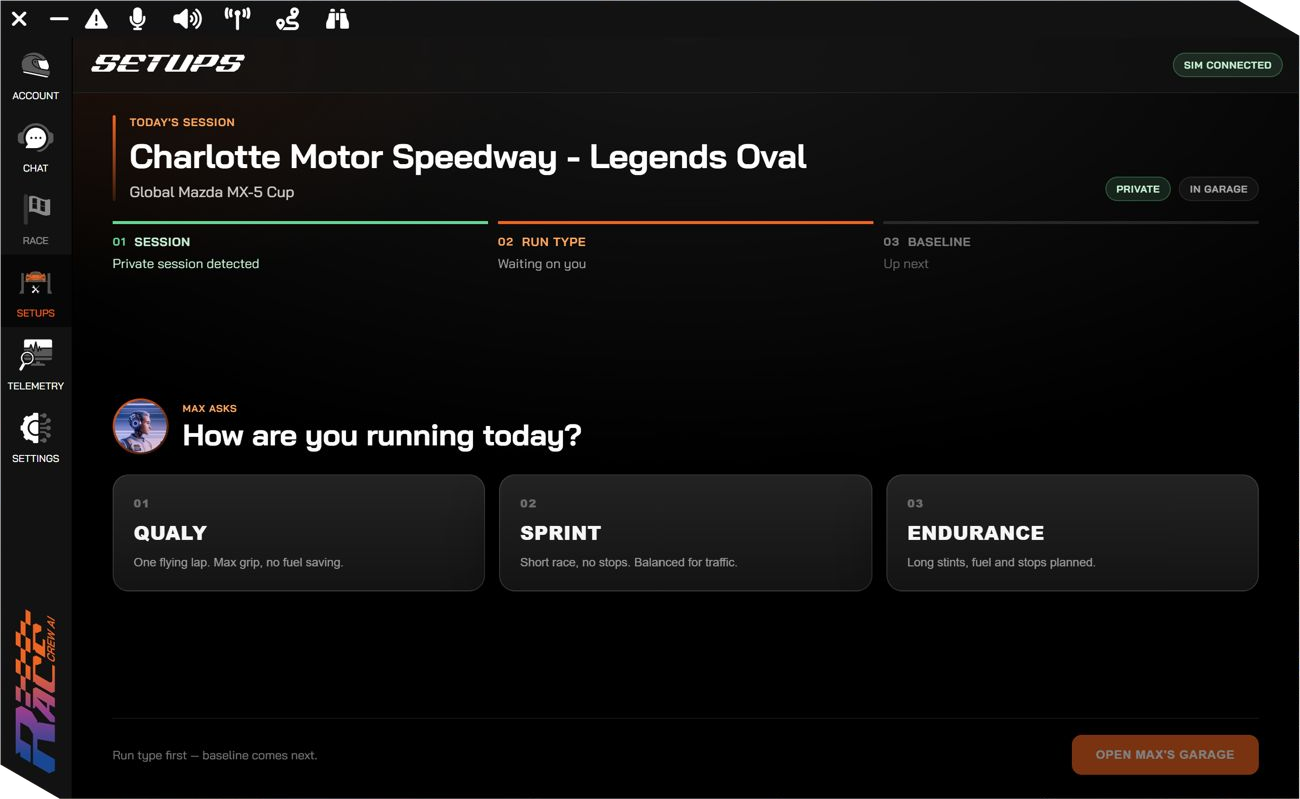
Plan your session with Max's setup guidance. Share your car, track, and feedback to explore what to adjust.
Start a private iRacing session, then open Setups to work with Max.
Pick one area to work on: car balance, consistency, or confidence.
02 / Drive
Ask your crew. Find your next step.
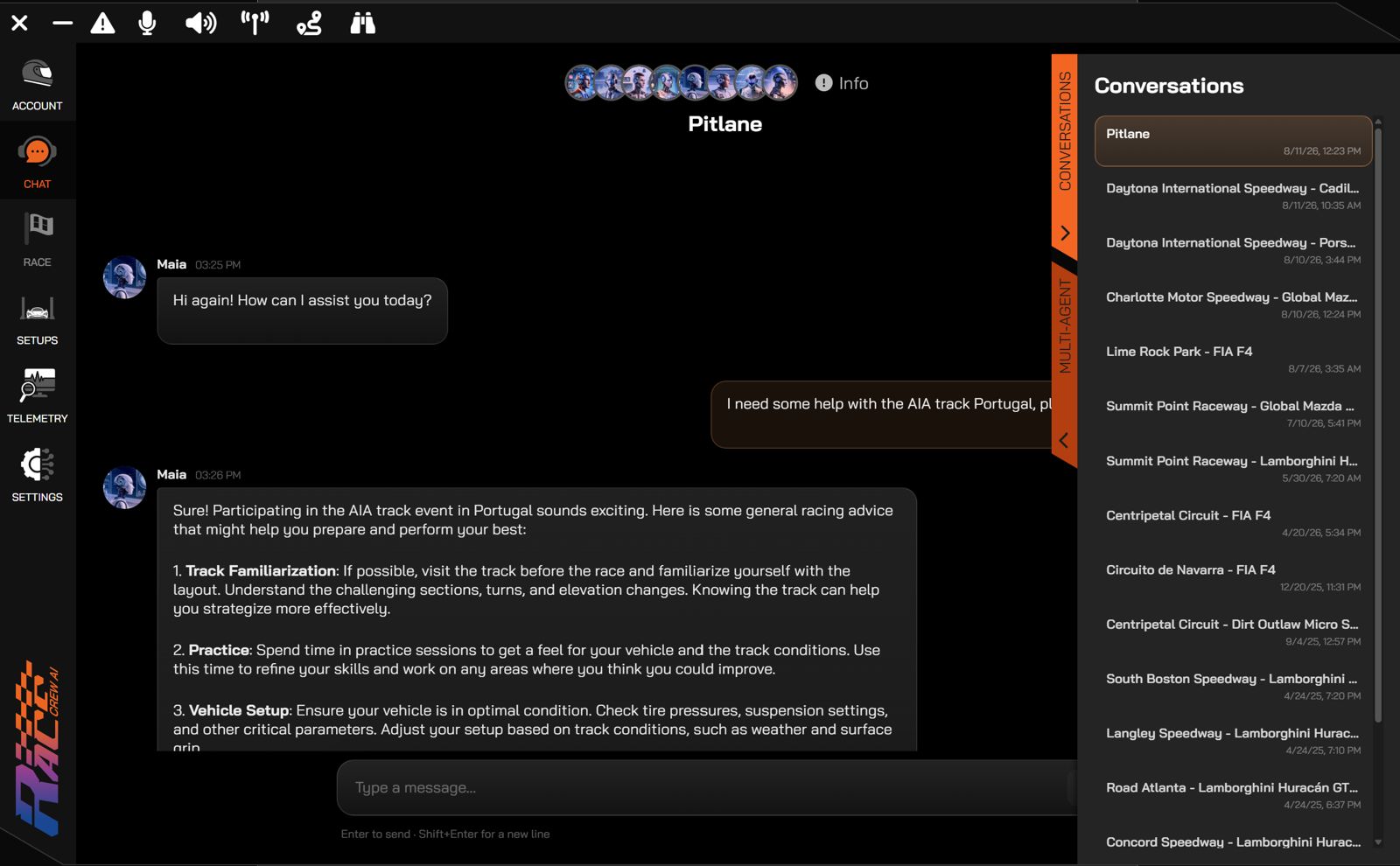
Talk with your AI crew in Pitlane. Share your car, track, and what you're experiencing so you can explore what to try next.
Available context depends on your session. Use chat or voice when it's safe to do so.
03 / Improve
Review. Choose. Repeat.
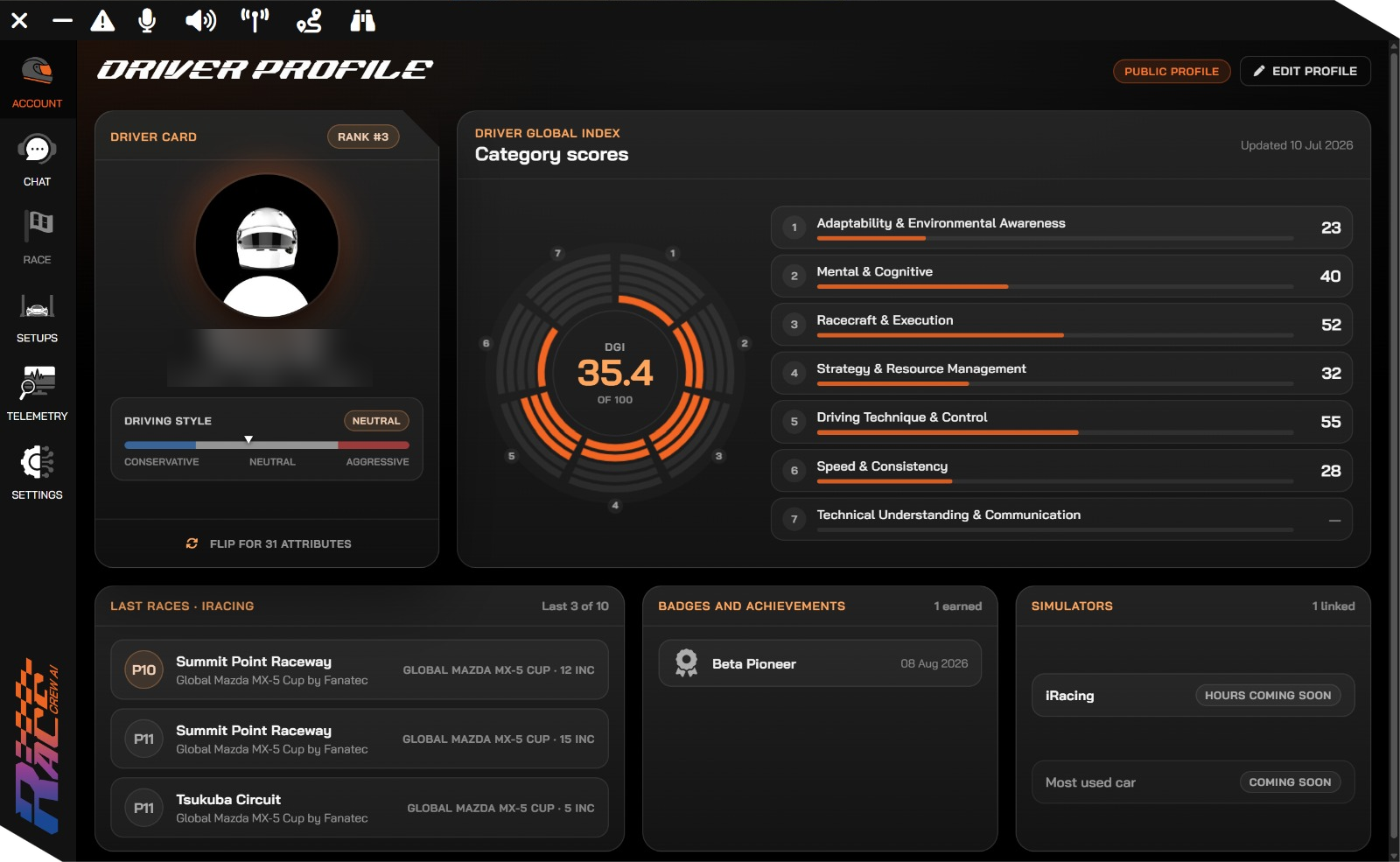
Explore your lap data and Driver Profile. Look for patterns, then choose one thing to work on in your next session.
Insights depend on the driving data available. Some profile scores may not be available yet.
Your AI crew
Different roles. A clearer next step.
Get to know the roles behind your crew, from setup guidance to understanding your driving data. Choose a crew member to learn more.
 BossTeam lead
 MaxSetup guidance
 MaiaRace engineer
 RochaData analysis
 BentesCommunication
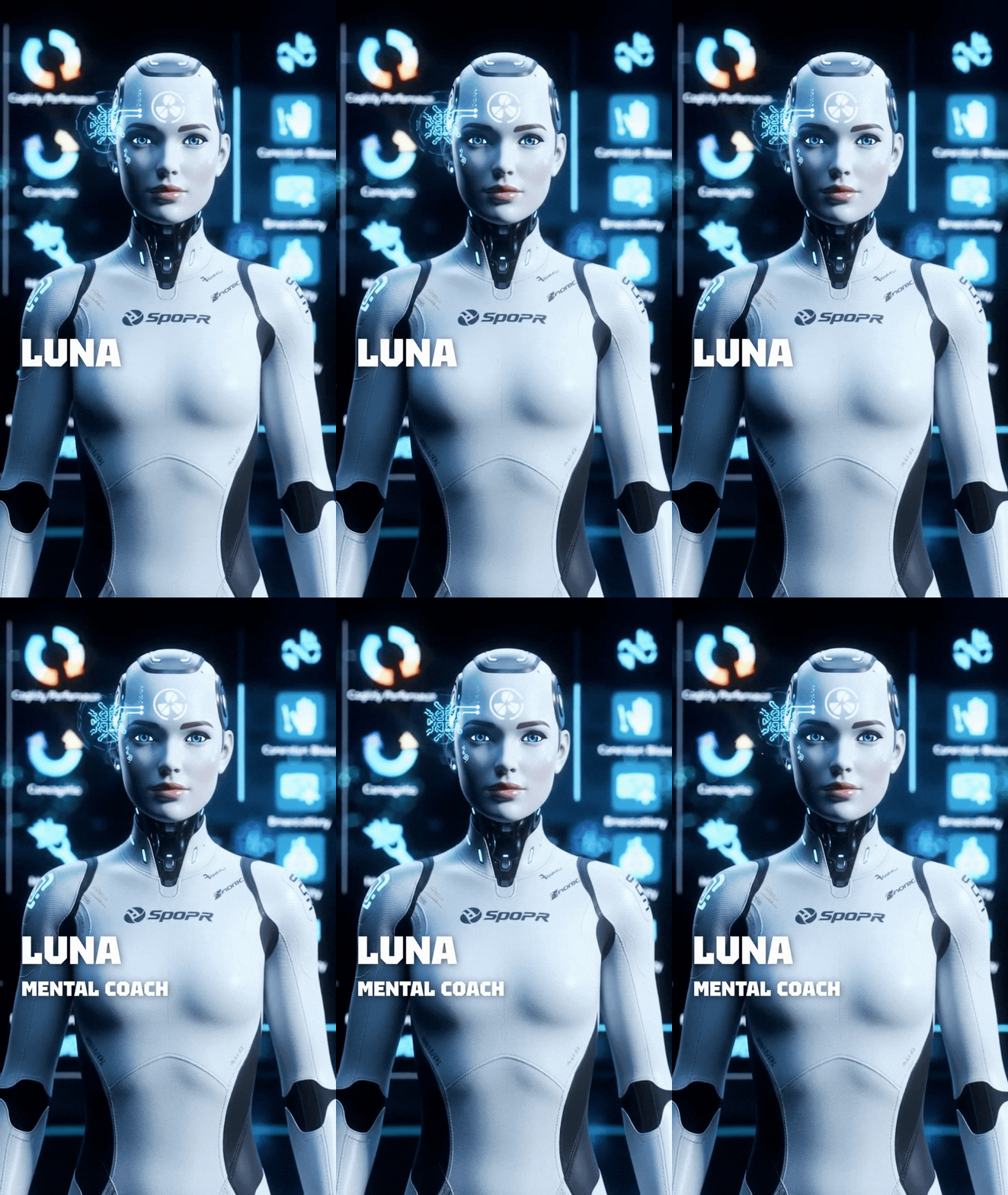 LunaMental focus
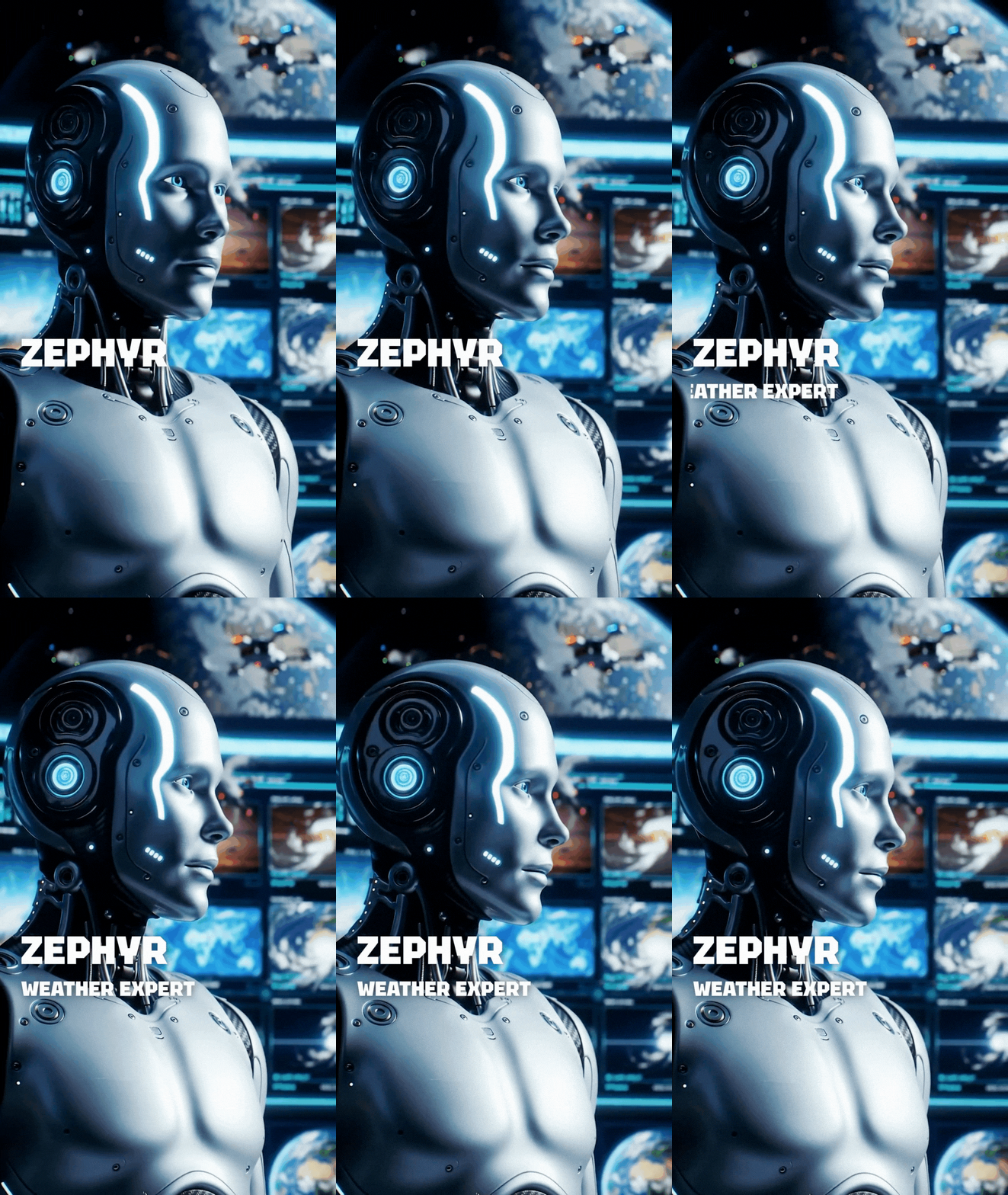 ZephyrWeather
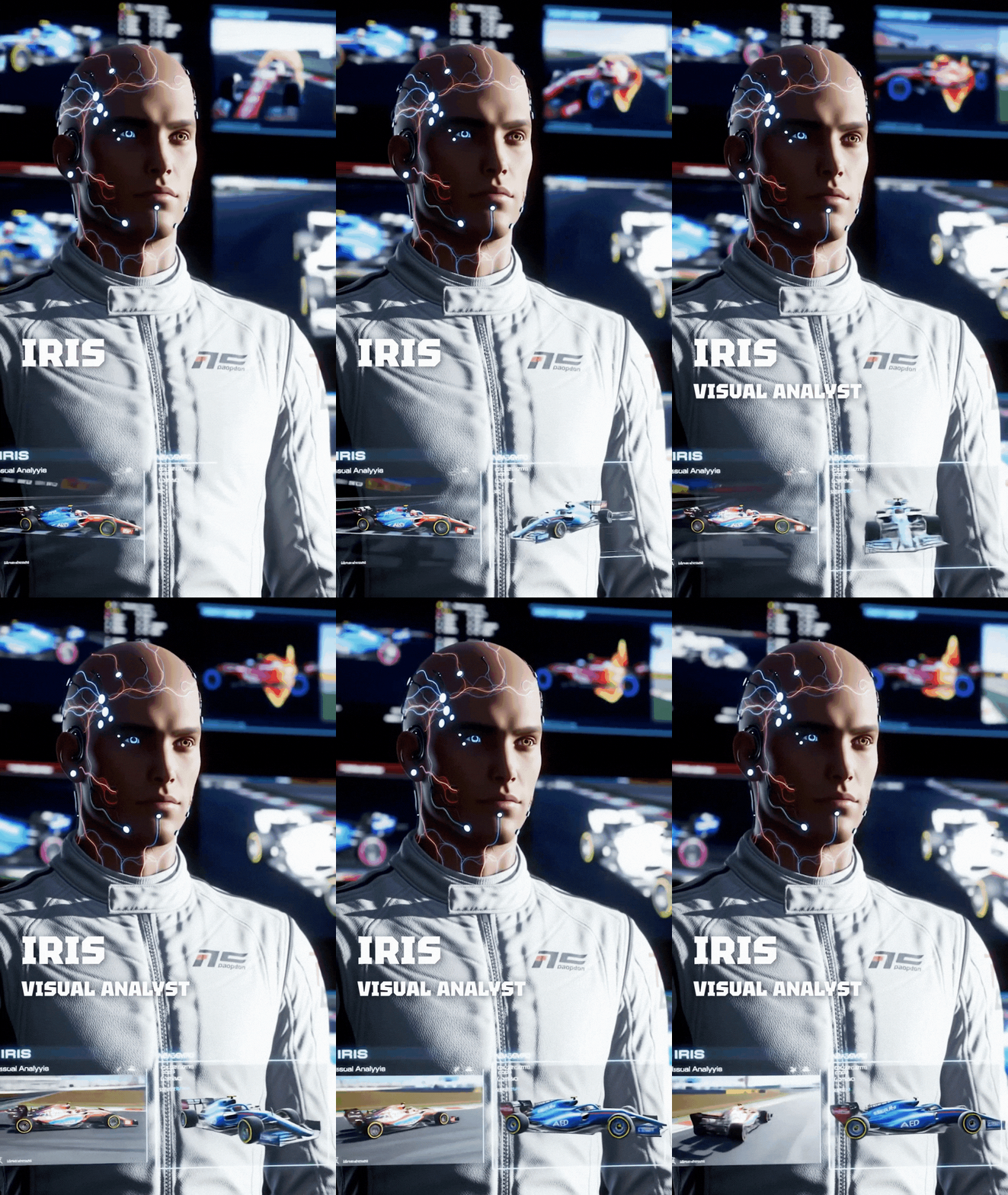 IrisVisual analysis
Boss — Team lead
Keep the bigger picture in view.
Boss is the crew's team lead, focused on your goals, priorities, and the bigger picture. This role connects each session to what you want to improve.
You remain responsible for your race decisions. The team-lead role does not guarantee results.
Max — Setup guidance
Share how the car feels. Explore what to adjust next.
Start with your car, track, session goal, and feedback. In Setups, work through the available guidance, review one proposed change at a time, and use your next run to assess the result.
Example question“The car feels unstable on corner entry. What should I check first?”
Available guidance depends on the car, session, and supported setup tools. Review changes before applying them.
Maia — Race engineer
Turn what you notice into a useful conversation.
Describe what you're experiencing on track and ask questions about what to try next. Maia brings a race engineer's perspective to the conversation.
Example question“I'm struggling to stay consistent through this corner. Where should I start?”
Context depends on your session and the data available. Use chat or voice only when it is safe to do so.
Rocha — Data analysis
Look for evidence in your driving data.
Rocha's role is to examine your available lap data, including its quality and limits. This analytical perspective helps distinguish useful patterns from conclusions that need more laps to support them.
Analysis depends on the data and tools available in your app version. Use patterns as a starting point for investigation, not as definitive answers.
Bentes — Communication
A communication role for a connected crew.
Bentes is the crew's communication specialist, focused on keeping people informed and making information easy to understand.
Specialist communication tools are still in development. This role introduction does not mean automated updates or community management are available today.
Luna — Mental focus
Make room for focus as well as pace.
Luna's role focuses on the mental side of racing: preparation, concentration, and how you respond under pressure.
This is an introduction to Luna's role, not a claim that dedicated coaching tools are available in your current version. AI guidance is not professional mental health care.
Zephyr — Weather
Consider changing track conditions.
Zephyr's role focuses on weather and the way changing conditions can affect a session, from grip to the choices you consider before a run.
This role description does not mean a live forecast or automatic weather integration is available. Check the conditions shown by your simulator.
Iris — Visual analysis
A visual perspective on your driving.
Iris represents visual analysis within the crew, with a focus on what racing footage and visual information can reveal about a session.
This describes the role's focus. It does not promise a released video-upload or automatic video-analysis feature.
These descriptions explain each crew member's role. They do not mean that every specialist tool is available. Capabilities and context depend on your app version and session. AI guidance can be incomplete or incorrect; check it against your own judgment and driving data.
Keep your racing circle close.
Add friends with an invite code. Create or join a team in the app.
Your first session starts here.
Create your account
Install the app
Sign in
Enter the access code sent to your email.
Connect iRacing
Start a session and choose what to work on first.
Requirements and connection help
Start with Windows and iRacing
Download and install the Windows app, then sign in with the access code sent to your email. Only iRacing is supported right now. Other simulator integrations aren't available yet.
Follow the iRacing connection prompts in the app. For setup guidance, enter a private iRacing session, open Setups, and choose the run type before reviewing your baseline setup with Max.
If prompted, complete your basic Driver Profile and choose its visibility. Some scores may not be available when you first create your profile.
If the app can't detect your session, make sure iRacing is running and check the connection status in RaceCrewAI. Still stuck? Visit the support portal and include your app version and the step where you got stuck.
What if I need a hand?
Give your crew the details that matter
Try: “I'm driving this car at this track, and the rear feels unstable under braking. What should I check first?” Describe what happens, where it happens, and what you've already tried.
Change one thing at a time, try another run, and review the result. AI guidance can be incomplete or incorrect, so use your judgment and check it against your driving data.
For account, installation, or connection problems, use the support portal. If you can't sign in, contact us. For general questions, read the FAQ.
Friends, teams, and sharing a lap
Add a friend
Open Account → Friendship, generate an invite code, and send it to the other driver. They choose “Got a code?” and redeem it. Once the code is accepted, you're connected. There's no separate friend request to approve.
A friend code is single-use and expires after 24 hours. If it's expired or has already been used, generate a new one.
Create or join a team
In Account → Teams, create a team with its name and type, or join with a team invite code. View the team overview, members, and in-app notifications. In Settings → Teams, manage members and invitations according to your permissions.
Team permissions — Lead, Admin, and Member — are separate from roles such as Driver or Coach. Team invite codes can have different expiration dates and usage limits. Ask the sender for a new code if yours no longer works.
Share a lap from Telemetry
Use the Telemetry toolbar to share a lap by code or enter a code to import someone else's lap. Check the import confirmation and any compatibility information shown in the app.
This is separate from adding a friend or joining a team. Direct setup and telemetry sharing in Friends, team Squads, and Shared Resources are still marked “Coming soon.”
Ready for your next session?
Find a clearer focus and get more from your time on track.